Extract a Colour Palette From Any Image
Colour consistency is the foundation of brand recognition. It's what makes a Coca-Cola can instantly recognisable before you even read the logo, or why a Tiffany's box sparks excitement before it's even opened. But for digital marketers and designers, maintaining that consistency can be a technical headache.
We've all been there: you see a beautiful photograph, a competitor's well-designed landing page, or a piece of inspiration on Pinterest, and you want to use those exact colours. You try to eyeball it, using a colour picker to guess the shade, but it never looks quite right. The red is too orange, or the blue lacks that specific depth.
Without the exact colour codes, you are essentially guessing. And in branding, guessing leads to inconsistency. To build a professional visual identity, you need precision. You need the ability to instantly pull the exact DNA of a colour scheme from any visual reference.
What Is a Colour Palette Extractor?
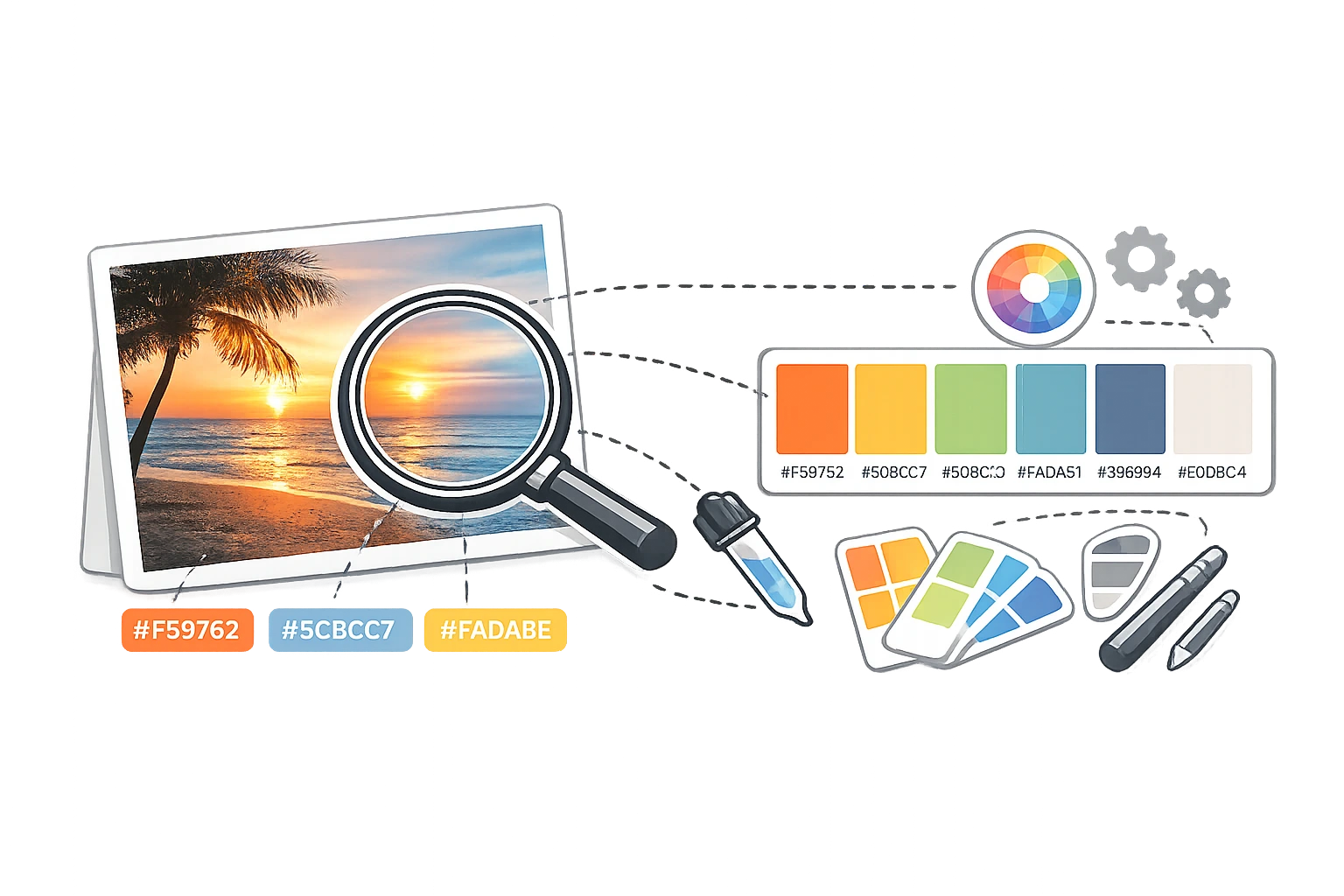
A colour palette extractor is a tool that programmatically analyses an image's pixel data to identify its chromatic composition. Unlike a simple "colour dropper" tool, which selects a single pixel (which might be affected by shadows or compression artefacts), a palette extractor calculates the mathematical average of colour clusters to identify the dominant hues.
It scans the image, groups similar pixels, and returns a palette of the 5-10 most significant colours used in that visual. Most importantly for web design and digital marketing, it instantly converts these visual colours into the three colour models your computer understands: HEX, RGB, and HSL.
When Would You Use a Colour Palette Extractor?
While it might sound like a niche tool for graphic designers, a colour palette extractor is actually a daily utility for smart digital marketers. Here are six scenarios where this tool saves hours of work:
- Competitor Analysis: Take a screenshot of a competitor's website or ad creative. Run it through the extractor to see exactly which hex codes they are using. Are they using a true black (#000000) or a softer charcoal (#333333)?
- Mood Boarding: You have a mood board of images that represent the "vibe" of your new campaign. Extract the palette from these images to generate a concrete style guide for your designers.
- Matching Brand Assets: You've joined a new company and have a logo file, but no brand guidelines PDF. Extract the logo's palette to ensure your slide decks match the official branding perfectly.
- Recreating Themes: You found a website theme you love. Instead of inspecting the code element by element, take a screenshot of the page and extract the palette to get the entire colour scheme in one go.
- Nature Inspiration: Sometimes the best colour combinations occur naturally. A photo of a sunset, a forest, or a seascape can provide a perfectly balanced colour harmony that you can lift directly for a project.
- Client Work: A client sends you a photo and says, "I want the website to feel like this." Don't guess—extract the exact colours to start your design process on the right foot.
How to Extract a Colour Palette in 3 Steps
You don't need expensive software like Adobe Photoshop or Illustrator to do this. You can do it right in your browser using CampaignMorph's free tool.
Step 1: Upload Your Image
Navigate to the Colour Palette Extractor. Drag and drop your image file (JPEG, PNG, or WebP) onto the canvas, or click to browse your device. The tool processes the image locally in your browser, so your files are never uploaded to a server, perfect for confidential client work.
Step 2: Analyse the Results
The tool instantly processes the image and generates a row of colour swatches representing the dominant palette. You will typically see a mix of light, dark, and saturated colours that create the photo's visual balance.
Step 3: Copy Your Codes
Click on any colour swatch to copy its code. You can toggle between HEX (e.g., #FF5733), RGB (e.g., rgb(255, 87, 51)), or HSL (e.g., hsl(9, 100%, 60%)) depending on what your design software requires.
Ready to find your perfect colours?
Upload any image and get the exact colour codes in seconds.
Understanding Your Extracted Colours
Once you have extracted a palette of 5 or 6 colours, how do you use them? You rarely want to use every colour equally. A professional brand palette typically follows a hierarchy, often referred to as the 60-30-10 rule.
- Primary Colour (60%): This is usually a neutral colour-white, light grey, cream, or dark charcoal. It serves as the background and canvas for your content. From your extracted palette, pick the lightest or darkest tone for this role.
- Secondary Colour (30%): This is your main "brand" colour. It's used for headers, major graphics, and layout elements. It defines the look. Pick the most vibrant or distinct colour from your extraction for this.
- Accent Colour (10%): Used sparingly for calls to action (buttons, links) and highlights. It needs to contrast sharply with the other two. Pick a colour from your palette that stands out against the secondary colour.
Using Your Extracted Palette in Design Tools
Now that you have your codes, here is how to apply them across your workflow:
- Canva: When selecting a colour for text or elements, click the "+" icon in the colour menu and paste your HEX code directly into the search bar.
- Figma: Select an object, look at the "Fill" section in the right sidebar, and paste the HEX code. You can also save these to your document's local styles.
- PowerPoint: Go to Font Colour or Shape Fill > More Colours> Custom. Here you can paste the HEX code or input the RGB values if you are on an older version.
- CSS / Web Development: You can use any format, but HEX is standard for static colours (
colour: #FF5733;). If you plan to manipulate opacity later, copy the RGB values to use in an rgba format (colour: rgba(255, 87, 51, 0.5);).
From Extracted Palette to Brand Identity
Extracting colours is just the first step. To build a cohesive brand, you need to document these decisions. We recommend reading our Brand Visual Identity Guide to learn how to formalise these colours into a style guide.
If you are struggling to narrow down your choices, check out How to Choose Brand Colours for a psychological breakdown of what different hues communicate. And if you are confused by the different code formats, our HEX vs RGB vs HSL Guide will clarify everything.
Frequently Asked Questions
1. Can I extract colours from a website screenshot?
Yes, absolutely. Take a screenshot of the website (Command+Shift+4 on Mac, or Snipping Tool on Windows), save it as an image, and upload it to the Colour Palette Extractor. It is often faster than inspecting the code.
2. How many colours should a brand palette have?
Most professional brands use 3–5 core colours: one background/neutral, one primary brand colour, one secondary/support colour, and one accent colour for actions. Extracting too many colours can lead to a cluttered, "rainbow" look.
3. How accurate is colour extraction from a photo?
It is mathematically precise, based on the image's pixels. However, be aware that lighting conditions in photos (such as shadows, filters, and warm indoor light) can affect the colour. The tool extracts the colour as it appears in the image, not necessarily the object's original colour in real life.
4. Can I get the exact PANTONE colour from a photo?
Not directly. Tools extract digital colour values (RGB/HEX). Pantone is a proprietary ink-matching system for print. While you can find "closest match" converters online, digital extraction cannot guarantee a perfect Pantone match because screens emit light while ink reflects it.
5. What is the difference between a colour picker and a colour palette extractor?
A colour picker (eyedropper) selects the exact colour of a single pixel you click on. A palette extractor analyses the entire image to identify the mathematical averages and dominant themes, giving you a cohesive set of colours rather than just a single point.
Ready to build your palette? Stop guessing and start designing with precision.
Share this article
Help other marketers, developers, and creators discover these insights.