How to Make 3x3 Photo Grids & Collages: The Complete Guide
Why do photo collages still matter in marketing?
A single image tells one story. A collage tells several at once.
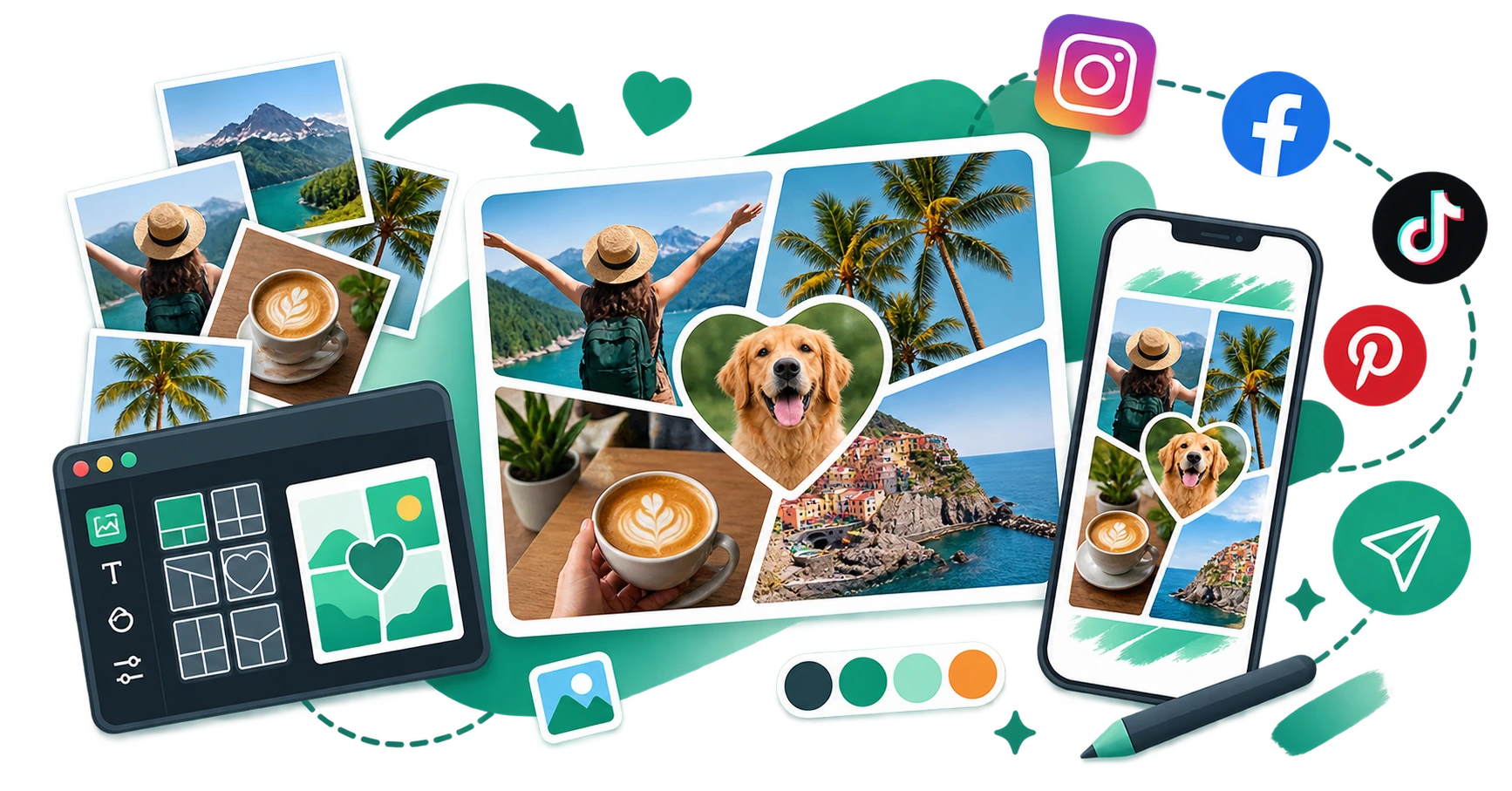
Photo collages combine multiple images into a single visual, making them one of the most efficient content formats for social media, email marketing, and print materials. They let you show a product from multiple angles, compare before-and-after states, recap an event, display a portfolio, or tell a visual story all within one shareable image.
In a feed-scrolling environment where each post competes for a fraction of a second of attention, collages have a structural advantage: more visual information in the same screen space. This makes them particularly effective for platforms like Instagram, Facebook, and Pinterest where visual density drives engagement.
What does the Collage Maker do?
The CampaignMorph 3x3 Photo Grid & Collage Maker is a free, browser-based tool for creating photo collages, multi-photo grids, and 3x3 layouts. It runs entirely on your device; no images are uploaded to any server.
Core features
- Multiple grid layouts: choose from preset layouts supporting 2 to 9+ images, including classic 3x3 photo grids, 2x2 squares, equal columns, asymmetric arrangements, and featured-image hero layouts
- Custom dimensions: set the canvas to any pixel size, or use presets for common aspect ratios (1:1 square, 4:3 classic, 16:9 landscape, 9:16 portrait)
- Image controls: reposition and scale each image within its cell, reorder images via drag-and-drop, and remove or replace individual photos.
- Background removal: remove the background from any image directly within the tool, powered by an in-browser AI model that processes the image locally
- Gap and border controls: adjust the spacing between images, the border radius (rounded corners), and the background colour or transparency
- Export: download the final collage as a high-resolution image
Privacy by design
Every operation image loading, cropping, positioning, background removal, and final rendering happens in your browser. Your photos never leave your device. This is particularly important for teams working with client photos, unreleased product images, or any content subject to confidentiality agreements.
How to create a collage: step by step
Step 1: Upload your images
Click the upload area or drag and drop your images into the tool. You can add multiple images at once. Supported formats include PNG, JPG, WebP, and HEIC.
Step 2: Choose a layout
Browse the available grid layouts and select one that fits your content. The number of image slots categorises layouts:
- 2 images: side by side, stacked, or feature + secondary
- 3 images: equal thirds, feature row + two below, or L-shaped
- 4 images: classic 2×2 grid or mixed sizes
- 5–9 images: various asymmetric and grid arrangements
The layout determines how many images appear and how the space is divided. You can switch layouts at any time without losing your uploaded images.
Step 3: Arrange and adjust
For each image cell:
- Reposition: click and drag within the cell to adjust which part of the image is visible
- Scale: zoom in or out to fit the image exactly how you want it
- Reorder: drag images in the sidebar list to change which image appears in which cell
Step 4: Remove backgrounds (optional)
If you want to place subjects on a clean background or layer them creatively, use the built-in background removal feature. Select an image and click the background removal button. The AI model processes the image locally in your browser and removes the background in seconds.
This is useful for:
- Product photography on white or branded backgrounds
- Headshot collages with uniform backgrounds
- Creative compositions where subjects overlap
For more control over background removal, use the dedicated Background Remover tool.
Step 5: Customise the design
Adjust the visual properties:
- Gap size: the spacing between image cells (0 for edge-to-edge, higher values for visible borders)
- Border radius: round the corners of each cell for a softer look
- Background colour: choose a solid colour or set the background to transparent
- Canvas dimensions: set the exact pixel width and height
Step 6: Export
Download the completed collage. The output is a high-resolution image ready for use on social media, websites, email campaigns, or print.
Social media collage sizes
Each platform has preferred image dimensions. Setting the correct canvas size before designing ensures your collage displays without cropping:
| Platform | Recommended size | Aspect ratio | Best for |
|---|---|---|---|
| Instagram Feed | 1080 × 1080 px | 1:1 | Product showcases, event recaps |
| Instagram Story | 1080 × 1920 px | 9:16 | Before/after, step-by-step |
| Facebook Post | 1200 × 630 px | ~1.9:1 | Timeline posts, ads |
| Facebook Cover | 820 × 312 px | ~2.6:1 | Profile cover collages |
| Pinterest Pin | 1000 × 1500 px | 2:3 | Portfolio displays, tutorials |
| LinkedIn Post | 1200 × 627 px | ~1.9:1 | Case studies, team photos |
| X (Twitter) Post | 1200 × 675 px | 16:9 | Event summaries, announcements |
The Collage Maker includes presets for the most common aspect ratios (1:1, 4:3, 16:9, 9:16), making it easy to match platform requirements.
Use cases
Product photography
E-commerce teams use collages to show a product from multiple angles in a single image. A 2×2 grid showing front, back, side, and detail views is a standard format for product listing pages and social ads.
Before and after comparisons
Side-by-side collages are effective for demonstrating transformations: home renovations, design makeovers, fitness progress, or software UI improvements. The two-image layout with a clear split makes the comparison immediate.
Event recaps
After a conference, workshop, or team outing, a collage of event highlights makes effective social media content. Select 4–6 of the best photos, arrange them in a grid, and post with a caption summarising the event.
Portfolio and showcase
Designers, photographers, and artists use collages to present a curated selection of their work. A single collage image is easier to share across platforms than linking to a full portfolio website.
Real estate and property listings
Property listings benefit from collages that combine exterior, interior, and detail shots into one image. A 4-image grid showing the front, kitchen, living room, and garden gives potential buyers a complete overview before clicking through.
Email marketing
Collages work well in email campaigns where multiple products or offers need to be presented compactly. A single collage image loads faster than multiple separate images and takes less vertical space in the email.
3x3 Photo Grids & Aesthetic Moodboards (9-Image Grids)
The 3×3 grid (9-photo grid) is one of the most requested collage templates across social media. Users frequently look for a 3x3 maker to build aesthetic moodboards, favorite music album collages (Topster-style), film retrospectives, and monthly recap photo grids for Instagram and Pinterest. With the Free 3x3 Photo Grid Maker, you can select the 9-image 3×3 layout, adjust outer borders and inner cell gaps, round the corners, and export a high-resolution 1:1 square canvas in seconds.
Design tips for better collages
Use consistent lighting and colour temperature.
Images with similar lighting conditions look cohesive when placed together. If one image is warm-toned and another is cool-toned, the collage will feel disjointed. Adjust your images before importing, or use the Image Filter Applicator to apply a consistent treatment.
Leave breathing room
A gap of 8–16 pixels between cells prevents images from overlapping and improves readability. Edge-to-edge layouts (zero gap) work for artistic compositions but can feel cluttered for marketing use.
Start with the strongest image.
If your layout has a featured cell (one image larger than the rest), place your strongest, most eye-catching image there. The featured image anchors the collage and draws attention first.
Match the canvas size to the platform.
Always set the canvas dimensions before arranging images. Designing at the correct aspect ratio ensures nothing gets cropped when you upload. Refer to the platform size table above.
Prepare images first
For the best results, resize and compress your images before importing them into the collage maker. The Image Resizer can scale images to consistent dimensions, and the Image Compressor reduces file sizes for faster processing.
Frequently asked questions
1. Is the Collage Maker free?
Yes. The tool is completely free with no watermarks, no sign-up, and no usage limits.
2. Are my photos uploaded to a server?
No. All image processing happens in your browser. Your photos never leave your device.
3. What image formats are supported?
The tool supports PNG, JPG, WebP, and HEIC (iPhone photo format). If you need to convert images from other formats first, use the Image Format Converter.
4. Can I remove backgrounds from photos?
Yes. The built-in AI-powered background removal feature processes images locally in your browser. For more advanced background removal, use the dedicated Background Remover.
5. What is the maximum number of images I can use?
The available layouts support up to 9 or more images, including 3x3 photo grids and custom collage arrangements.
6. Can I use the collage commercially?
Yes. The collages you create are yours to use for any personal or commercial purpose, provided you have the rights to the original photos.
7. How do I protect my collage from being copied?
Use the Watermark Adder to add text or image watermarks to your finished collage before publishing.
Try the Free 3x3 Photo Grid & Collage Maker
The CampaignMorph 3x3 Photo Grid & Collage Maker lets you create professional photo collages and 3x3 image grids in minutes. Upload images, choose a layout, customise the design, and export in high resolution directly in your browser with no sign-up, no watermarks, and no file uploads.
Selling physical products or running multi-variant ad sets? Learn how 3x3 photo grids and bundle collages fit into our complete E-Commerce Visual Asset Pipeline Guide alongside background removal, watermark protection, and store speed optimization.
For related tools, explore the Image Resizer, Image Compressor, Background Remover, Image Format Converter, and Profile Picture Maker.
Sources
- Instagram, Facebook, Pinterest, LinkedIn, and X (Twitter) recommended image dimensions from official platform documentation and creator resources.
- Google Search Central: guidance on image optimisation for web performance
Share this article
Help other marketers, developers, and creators discover these insights.