What Is a Favicon and Why Does It Matter?
It is the smallest element of your website—typically just 16 by 16 pixels—yet it does an enormous amount of work for your brand. When a user looks at their browser and sees a generic grey globe icon next to your site title, it subconsciously signals "unfinished" or "untrustworthy."
When they see a sharp, branded icon, it signals "professional." That tiny icon is the Favicon. In 2026, it is not just a nice-to-have; it is a critical part of your user experience and SEO presence.
What Is a Favicon?
A favicon (short for "favourite icon") is a small square image associated with a specific website. You see them everywhere:
- On browser tabs (next to the page title)
- In browser bookmarks and history lists
- On mobile home screens (when you "Add to Home Screen")
- In Google Search results (on mobile and increasingly on desktop)
- In browser toolbar apps and password managers
Why Do Favicons Matter for Your Brand?
1. Tab Recognition: The average user has dozens of tabs open. When tabs get small, the text disappears, leaving only the favicon as an identifier. If your favicon is missing or generic, users can't find your site to click back to it. A distinct favicon anchors your site in the user's browser.
2. Trust Signals: Internet users are wary of scams. A website without a custom favicon looks like a generic template or a fly-by-night operation. A custom favicon indicates that attention to detail has been paid to the site's construction.
3. SEO & Click-Through Rate: Google displays favicons next to search results, particularly on mobile. A recognisable, high-contrast favicon can draw the eye and improve your click-through rate (CTR) compared to a generic result.
Favicon Sizes: The Complete Set for 2026
In the early days of the web, you only needed one size. Today, with high-resolution Retina screens, iOS icons, and Windows tiles, you need a set of sizes to look crisp everywhere.
| Size (px) | Where It Is Used |
|---|---|
| 16 × 16 | Standard browser tabs |
| 32 × 32 | Retina screens, Windows taskbar |
| 180 × 180 | Apple Touch Icon (iPhone/iPad home screen) |
| 192 × 192 | Android Chrome home screen icon |
| 512 × 512 | PWA (Progressive Web App) splash screen |
Favicon File Formats in 2026
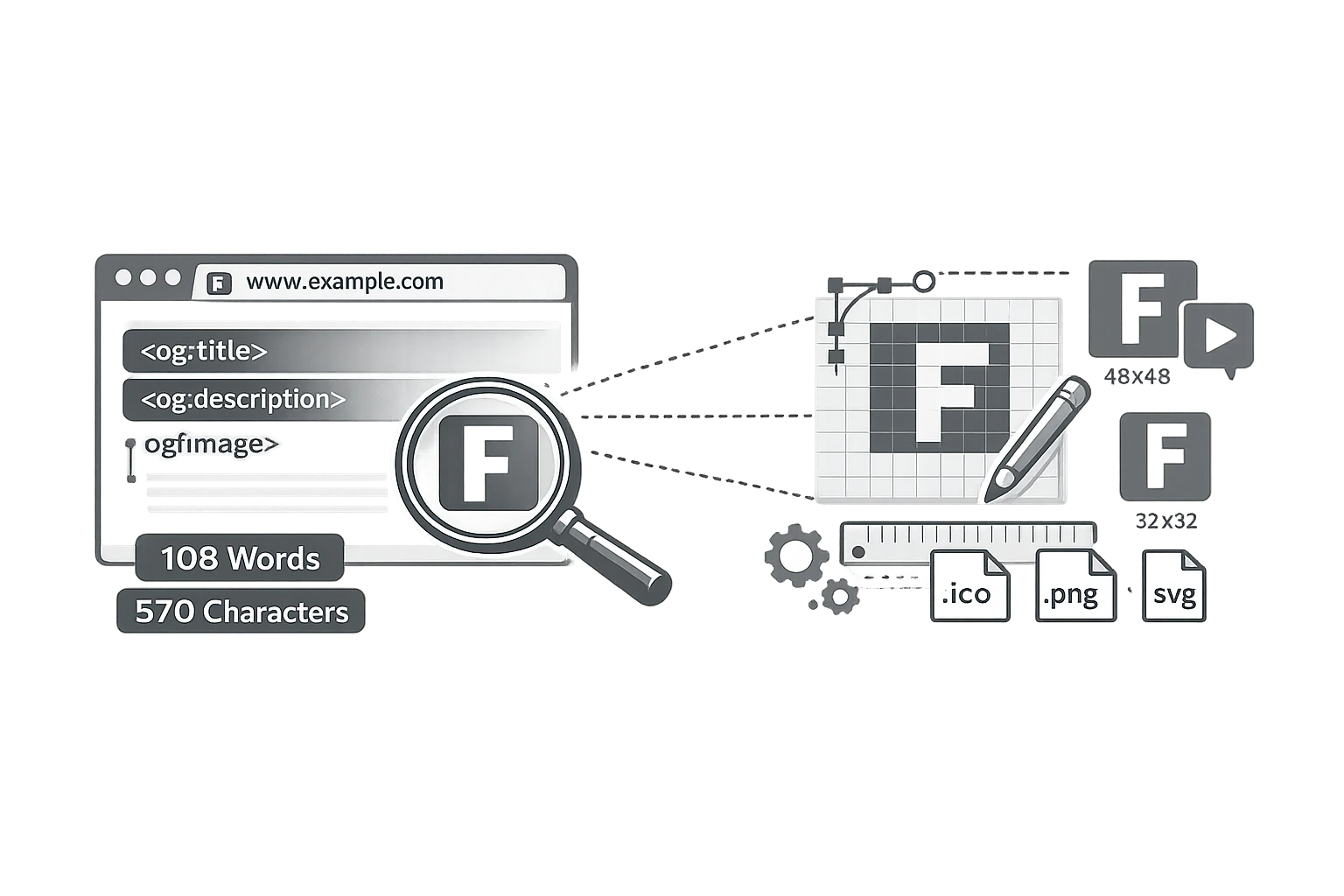
- ICO: The legacy format. A single
.icofile can actually contain multiple sizes (16, 32, 48) inside it. It is still the most compatible format for older browsers. - PNG: Modern browsers support standard PNG files. They are easy to create and support transparency.
- SVG: The future standard. SVG favicons scale infinitely without losing quality and, crucially, support CSS dark mode media queries, meaning your icon can change colour depending on whether the user is in Light or Dark mode.
Recommended Stack: Use favicon.ico for legacy fallback and favicon.svg for modern browsers.
How to Design a Good Favicon
Designing for 16 pixels is hard. Here are the golden rules:
- Don't use your full logo: Complex text or taglines will turn into unrecognisable mush at small sizes.
- Use a symbol or initial: Use your logo mark (like Nike's swoosh) or the first letter of your brand name (like Facebook's 'f' or Google's 'G').
- Maximise Contrast: Use bold shapes and solid colours. Thin lines disappear.
- Use Transparent Backgrounds: A square white box looks cheap on grey browser tabs. Use transparency (PNG/ICO) so the icon floats naturally.
How to Create a Favicon for Free in 3 Steps
You don't need a designer to make a professional favicon set. You can do it with CampaignMorph:
Step 1: Prepare your logo image (ideally a square PNG at least 512x512px).
Step 2: Go to the Favicon Generator and upload your image.
Step 3: The tool will automatically crop, resize, and convert your image to all necessary formats (ICO and PNGs for Apple/Android). Download the zip file.
Need a favicon fast?
Generate all required sizes for Apple, Android, and Web instantly.
How to Add a Favicon to Your Website
Once you have your files, here is how to install them:
- HTML: Upload the files to your root directory and add this code to your
<head>section:<link rel="icon" type="image/x-icon" href="/favicon.ico"> - WordPress: Go to Appearance > Customise> Site Identity > Site Icon. Upload your 512x512 image, and WordPress handles the rest.
- Webflow: Go to Project Settings > General > Icons. Upload the 32x32-pixel version for the Favicon and the 256x256 version for the Webclip.
- Squarespace: Go to Design > Browser Icon and upload your image.
Frequently Asked Questions
What size should a favicon be?
For the source file, design at 512x512 pixels. This ensures high quality for the largest use case (PWA splash screens). Your generator tool will scale this down to the tiny 16x16 and 32x32 sizes needed for browsers.
What file format should I use?
For maximum compatibility, provide a favicon.ico file in your site's root directory. For modern best practices, also provide PNG versions for mobile devices.
Why isn't my favicon showing up?
Browsers cache favicons aggressively. If you updated it but don't see the change, try clearing your browser cache or opening your site in an Incognito window. Also, verify that the file path in your HTML code is correct.
Can I use my full logo as a favicon?
Technically, yes, but it is not recommended. Full logos usually contain text, which becomes unreadable at 16 pixels wide. It is better to create a simplified "mark" or use the first letter of your brand name.
How do I add a favicon in WordPress?
You don't need code. Log in to your dashboard, then go to Appearance > Customise. Click on Site Identity. Look for the "Site Icon" section and upload your image there. WordPress will crop and publish it for you.
Don't let a missing icon undermine your brand's credibility. Create your custom favicon today and look professional in every tab.
Share this article
Help other marketers, developers, and creators discover these insights.