Image Optimization Guide for Digital Marketers
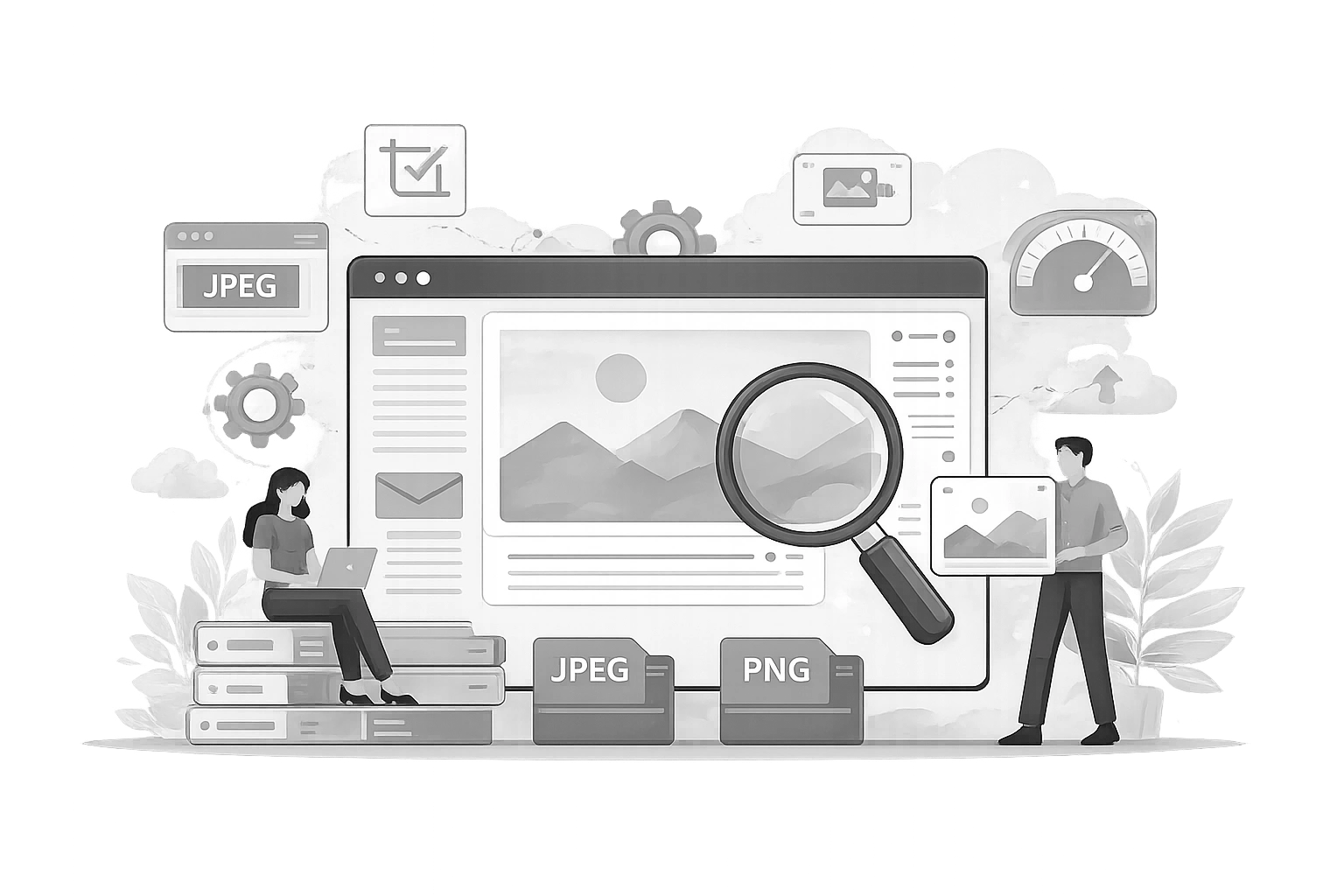
Images account for more of a website's weight than any other asset type. In 2026, when Core Web Vitals are a primary Google ranking factor and mobile users expect sub-second load times, unoptimized images are not just a cosmetic issue-they are a business liability. A slow-loading hero image can increase bounce rates by over 30%, directly impacting your bottom line.
But image optimisation is often misunderstood. It is not just about "making files smaller." It is a delicate balance between visual quality, file size, format selection, and dimensional accuracy. It involves technical SEO, user experience (UX), and brand protection.
This comprehensive guide will walk you through the entire image optimisation workflow for 2026, from selecting the right next-gen formats to automating your compression pipeline.
What Is Image Optimisation?
Image optimisation is the process of delivering high-quality images in the right format, dimensions, size, and resolution while keeping the file size as small as possible. It also involves labelling images with metadata so search engines can read them.
Why it matters:
- Page Speed: Smaller images load faster. Faster sites rank better on Google and convert better.
- SEO: Optimised filenames and alt text help your images rank in Google Images, a massive source of organic traffic.
- Server Load: Smaller files consume less bandwidth, saving hosting costs.
The Big Picture: The Optimisation Workflow
To master image optimisation, you need a repeatable process. Here is the standard workflow for every image you upload to the web:
- Choose the Format: Select between JPEG, PNG, WebP, or SVG.
- Resize: Scale the image to the maximum required display size (do not upload images wider than 4000px).
- Compress: Reduce file size using lossy or lossless compression.
- Metadata: Rename the file and add alt text for SEO.
- Protect: Add a watermark to any proprietary image.
Step 1: Choose the Right Image Format
Choosing the wrong format is the most common mistake. Using a PNG for a photograph can result in a file size 5x larger than necessary.
- JPEG (or JPG): The standard for photographs. It uses "lossy" compression, meaning it discards some invisible data to reduce file size. Use this for blog post images, product photos, and social media posts.
- PNG: "Lossless" compression. Use this for screenshots, logos, icons, or any image requiring a transparent background. PNGs are larger than JPEGs, so use them sparingly for photos.
- WebP: The modern standard. WebP images are 25-35% smaller than JPEGs and PNGs with comparable quality. Most modern browsers support WebP. We highly recommend converting your standard images to WebP for your website.
- SVG: Vector format. Perfect for simple logos and icons. SVGs are infinitely scalable without quality loss and extremely lightweight.
Not sure which one to pick? Use our Image Format Converter to switch between them and see the size difference. Read our deep dive: WebP vs AVIF Format Guide.
Step 2: Resize Images Before Uploading
A common error is uploading a raw photo from a DSLR camera (e.g., 6000 x 4000 px) to a blog post where the maximum display width is only 800px. The browser has to download the massive file and then shrink it visually, which wastes bandwidth and processing power.
Rule of Thumb: Never upload an image significantly wider than the maximum width of your website's content area (usually 1200px - 1920px). Use our Free Image Resizer to scale your images down to the appropriate dimensions before uploading. For specific platform dimensions, see our Social Media Image Guide.
Step 3: Compress Images Without Losing Quality
Compression removes redundant data from the file. There are two types:
- Lossy: Significantly reduces file size (up to 80%) by removing some visual data. The quality drop is usually imperceptible to the human eye. Ideal for the web.
- Lossless: Compresses data without removing visual quality. The file size reduction is smaller. Ideal for archiving.
🔧 Compress Images Now
Use the CampaignMorph Image Compressor to reduce file size by up to 70% while maintaining visual clarity.
Step 4: Optimise Filenames for SEO
Google cannot "see" your image content; it reads the filename.
Bad: DSC_1920.jpg
Good: image-optimization-guide-2026.jpg
Use descriptive, hyphen-separated keywords in your filenames. This is a primary ranking factor for Google Images.
Step 5: Write Descriptive Alt Text
Alt text (Alternative Text) describes the image for visually impaired users (via screen readers) and search engines.
Formula: Describe the image specifically, including a keyword if relevant, but do not stuff keywords.
Example: "A marketer using a laptop to resize images on a free online tool."
Step 6: Lazy Loading
Lazy loading defers the loading of off-screen images until the user scrolls near them. This dramatically improves Initial Page Load time and LCP (Largest Contentful Paint) scores. Most modern CMSs (like WordPress) now enable lazy loading by default, but always verify it is active.
Step 7: Leverage Responsive Images
Using the srcset The HTML attribute allows you to serve different image sizes to different devices. You serve a small 400px image to a mobile phone and a 1200px image to a desktop. This ensures mobile users do not waste data.
Step 8: Use a CDN (Content Delivery Network)
A CDN hosts copies of your images on servers around the world. If a user in London visits your site (hosted in New York), the CDN delivers the image from a London server, reducing latency and load time.
Step 9: Protect Your Images with Watermarks
If you create original visual content, there is a risk of theft. Adding a subtle watermark protects your brand and ensures that even if the image is stolen, your brand name travels with it.
Use our Watermark Adder Tool to batch-stamp your logo or URL onto images before publishing. For long-term archival, consider converting your scanned documents and images to a single Scan to PDF file.
Step 10: Remove Backgrounds for Clean Visuals
For product photography, a clean white or transparent background is the industry standard. It reduces visual clutter and focuses attention on the product. Our upcoming Background Remover uses AI to do this in one click.
Core Web Vitals & Images
Google's Core Web Vitals heavily weigh image performance:
- LCP (Largest Contentful Paint): Large hero images are often the LCP element. Optimising them is crucial for a "Good" score.
- CLS (Cumulative Layout Shift): Images without defined height and width attributes cause the layout to jump as they load. Always specify dimensions in your HTML/CSS to prevent CLS.
Image SEO Checklist
| Task | Tool |
|---|---|
| Choose the correct format (WebP/JPEG) | Format Converter |
| Resize to display dimensions | Image Resizer |
| Compress file size | Image Compressor |
| Rename file (keywords) | Bulk File Renamer |
| Add Alt Text | CMS (WordPress/Shopify) |
| Define width/height attributes | HTML/CSS |
For a full list, see the Image SEO Checklist.
Frequently Asked Questions
1. What is the ideal file size for web images?
Aim for under 100KB for standard images and under 200KB for large hero banners. Anything over 300KB is usually too large for optimal performance.
2. What image format is best for website speed?
WebP is currently the best balance of quality and size. AVIF is even smaller but has slightly less browser support.
3. How do I write good alt text?
Be descriptive yet concise. Focus on what is actually in the image. Imagine describing the image to someone over the phone.
Image optimisation is a high-leverage activity. A few minutes spent resizing and compressing images can result in faster load times, better Google rankings, and happier users. Start by auditing your heaviest pages today and using the free tools available to fix them.
Share this article
Help other marketers, developers, and creators discover these insights.