Responsive table design basics for non-developers
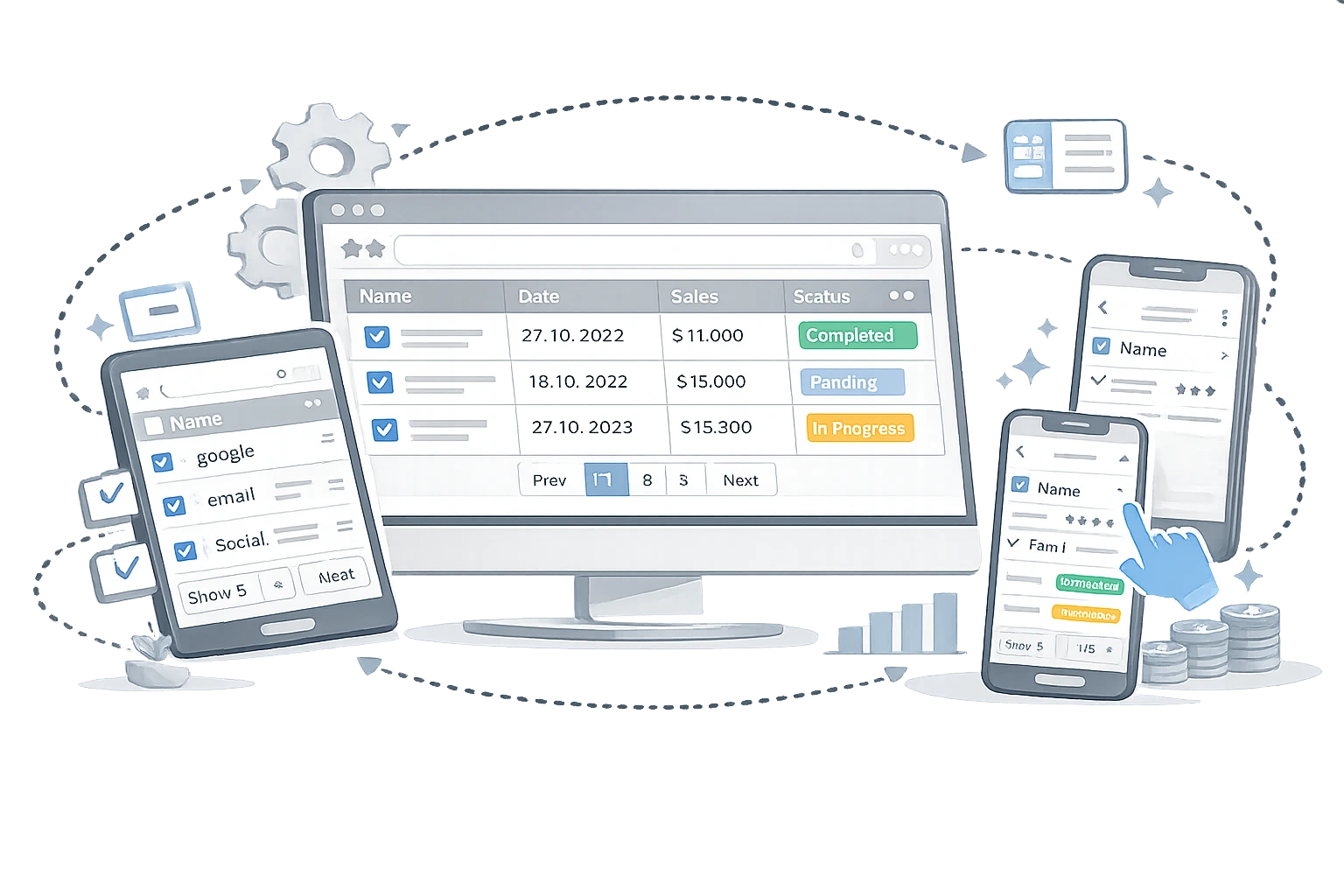
Tables are useful because they make comparison easy.
Pricing tiers, feature breakdowns, product specs, reporting snapshots, and campaign comparisons all become easier to scan when information is arranged in rows and columns. But the same structure that makes tables useful on desktop can make them frustrating on mobile if they are not planned carefully.
For non-developers, responsive tables often feel like a technical problem. In reality, the first part of the solution is editorial and structural. A table is easier to adapt when the content is well organised before anyone touches the CSS.
This guide explains the basics of responsive table design in plain language, with a focus on readability, structure, and accessibility.
Start with the right question: should this be a table at all?
Not every grid of information needs to be a table.
Use a table when users need to compare values across rows and columns. That is what tables are for. MDN describes the <table> element as representing tabular data, meaning information presented in a two-dimensional table made up of rows and columns. Source
That means a table is a strong fit for:
- pricing comparisons
- campaign performance snapshots
- schedule matrices
- product specifications
- feature checklists with consistent criteria
A table is usually a poor fit for:
- long paragraphs
- card-style promotional content
- one-off callouts
- layout-based page design
If the information is not truly comparative, another format may work better.
Why do tables break on small screens?
Tables become hard to use on mobile for predictable reasons:
- Too many columns
- Long header labels
- Long cell content
- No clear row hierarchy
- No visual prioritisation
- No responsive handling plan
The core problem is width. A desktop table can comfortably show many columns at once. A phone screen cannot.
That is why responsive table design is less about “shrinking everything” and more about deciding what information matters most when horizontal space disappears.
Good table structure makes responsiveness easier.
Before you think about layout behaviour, make sure the table structure is sound.
MDN’s accessibility guidance emphasises the use of proper table markup so that screen readers can associate headers with data cells. It recommends using <th> for headers, adding <caption>, and using scope to show whether a header applies to a row or column. Source
For non-developers, that translates into a simple content rule:
- Every column should have a clear label
- Every row should represent one coherent item
- Every value should sit under the correct heading
- The table should have a clear title or purpose
When those basics are missing, responsive behaviour becomes harder no matter what design technique is used later.
Always give the table a caption
One of the easiest improvements you can make is adding a caption.
MDN says a <caption> Element describes the table’s contents and helps users quickly understand its purpose without reading every cell. It also notes that, if included, the <caption> must be the first child of the <table>. Source Source
For a marketing team, that means instead of publishing a table with no framing, you label it clearly:
- “Q3 paid media performance by channel”
- “Feature comparison for starter, growth, and enterprise plans”
- “Recommended image dimensions by platform”
A good caption improves both usability and context.
Use headers properly
MDN recommends using <th> for headers rather than regular data cells, because screen readers use headers to form associations with the data they describe. It also recommends the scope attribute to clarify whether a heading applies to a column or row. Source
In practical terms:
- Column labels should be actual headers
- Row labels should be actual headers when they function that way
- Do not fake headings with bold text alone
This matters for accessibility, but it also helps visual clarity. Clean headers make tables easier for everyone to scan.
Keep column labels short.
Responsive problems often begin in the header row.
If your columns are labelled with long phrases like:
- “Estimated organic lead acquisition efficiency”
- “Average monthly performance delta versus baseline”
The table is already under strain before it reaches mobile.
Shorter labels create more room:
- “Lead cost”
- “Monthly change”
- “Baseline”
If needed, explain the nuance in the surrounding copy or in notes below the table rather than stuffing it into the header itself.
Reduce the number of columns.
If a table is too wide, the fastest way to improve it is often to reduce what it tries to show.
Ask:
- Can two columns be merged?
- Can secondary details move into a note?
- Can this become two smaller tables?
- Are all columns equally important on mobile?
Responsive design is often a prioritisation exercise. The more columns you remove, the more legible the remaining table becomes.
Plan for horizontal scrolling when comparison matters
Sometimes users genuinely need the full table, even on smaller screens.
In those cases, horizontal scrolling can be preferable to forcing the table into a broken, stacked layout. The goal is not to avoid scrolling at all costs. The goal is to preserve understanding.
If the relationship between columns matters, it is often better to keep the table intact and allow controlled sideways scrolling than to destroy the comparison logic.
This is especially true for:
- pricing tables
- feature matrices
- spec comparisons
- campaign snapshots with aligned metrics
Accessibility should not be lost in the name of responsiveness
This is where teams sometimes go wrong. They chase a clever mobile layout and accidentally damage the table’s meaning.
MDN’s table accessibility guidance emphasises that screen readers rely on proper associations between headers and cells. It also notes that complex tables may use id and headers attributes to create explicit relationships, while simpler tables often rely on scope. Source
The lesson for non-developers is simple: responsive design should not erase structure.
If the visual layout changes but the table becomes harder to understand, the design has not improved the experience.
A simple editorial checklist before publishing a table
Before a table goes live, check the following:
1. Does the table need to be a table?
If not, consider cards, bullets, or sections.
2. Does it have a caption?
Users should understand the table’s purpose instantly.
3. Are the headers short and clear?
Short labels improve scanability and mobile fit.
4. Are there too many columns?
Cut what is not essential.
5. Is the most important information visible first?
Put key columns early.
6. Will it still make sense on a small screen?
If not, rethink the structure before styling.
7. Are headers and relationships explicit?
Use real table logic, not just visual formatting.
What should non-developers ask their developer or CMS team?
If you are planning a table but not coding it yourself, ask for these outcomes:
- proper caption support
- real table headers
- responsive overflow handling
- readable spacing on mobile
- no loss of header-to-cell meaning
- testing on narrow screens before publishing
Those requests are much more useful than simply asking someone to “make the table responsive.”
Final thoughts
Responsive table design starts long before CSS.
It starts with deciding whether the content truly belongs in a table, simplifying the structure, writing better headers, and preserving meaning. Once the content is well organised, technical responsiveness becomes much easier to implement.
For non-developers, the biggest win is to stop thinking of tables as just a formatting block and start treating them as structured comparison content.
When you do that, your tables become easier to read, easier to adapt, and more useful on every screen size.
Sources
- MDN Web Docs - HTML table accessibility: https://developer.mozilla.org/en-US/docs/Learn_web_development/Core/Structuring_content/Table_accessibility
- MDN Web Docs -
<caption>element: https://developer.mozilla.org/en-US/docs/Web/HTML/Reference/Elements/caption - MDN Web Docs -
<table>element: https://developer.mozilla.org/en-US/docs/Web/HTML/Reference/Elements/table
Share this article
Help other marketers, developers, and creators discover these insights.