UTM Parameters Explained: Complete Guide to Campaign Tracking in GA4
What are UTM parameters?
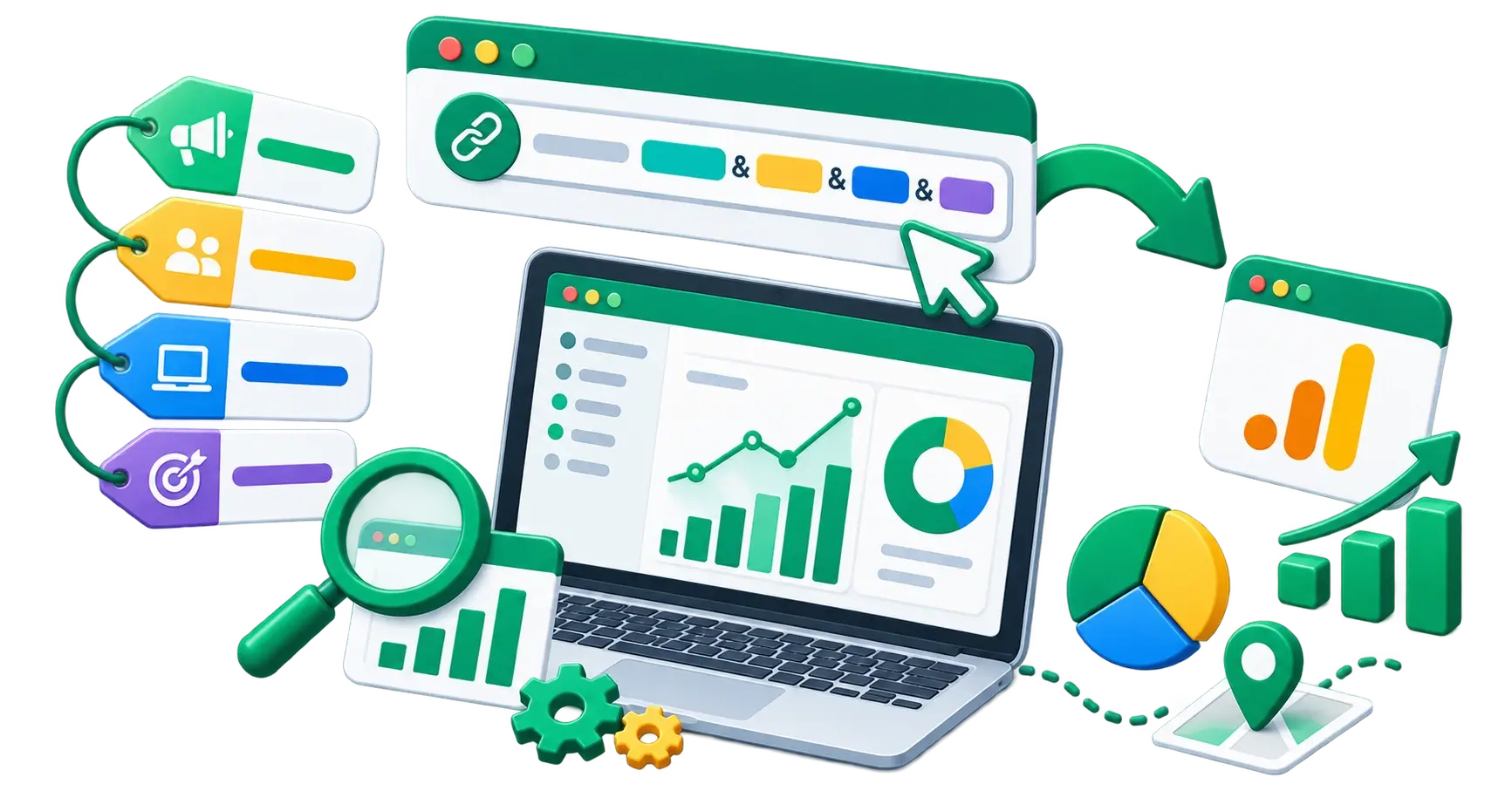
UTM parameters are short text codes you add to the end of a URL to track marketing campaign performance. "UTM" stands for Urchin Tracking Module, a nod to the company (Urchin) that Google acquired in 2005 to build Google Analytics.
When a user clicks on a link containing UTM parameters, Google Analytics 4 (GA4) strips those parameters from the URL and uses them to categorise the traffic. This allows you to answer three critical questions about your marketing efforts:
- Where did the traffic come from?
- How did it get to me?
- Why did it come to me?
Without UTM parameters, a click from a Facebook Ad, a Facebook Group post, and a link in a partner's email newsletter might all show up in GA4 generically as "Referral" or "Direct" traffic. With UTMs, you can see exactly which specific ad, post, or newsletter drove the click, the conversion, and the revenue.
The 5 standard UTM parameters
There are five standard UTM parameters. Three are highly recommended for every link, and two are optional but useful for deeper tracking.
1. utm_source (Required)
Answers: Where is the traffic coming from? This identifies the specific platform, website, or publication driving the traffic.
- Examples:
google,facebook,newsletter,twitter,forbes
2. utm_medium (Required)
Answers: How did the traffic get here?--- Unknown node: hardBreak ---This identifies the marketing medium or channel. It categorises the type of link.
- Examples:
cpc(cost-per-click ads),social(organic social media),email,affiliate,referral
3. utm_campaign (Required)
Answers: Why did they click? (Which initiative is this?) This identifies the specific marketing campaign, promotion, or product launch.
- Examples:
spring_sale_2026,product_launch_v2,welcome_series
4. utm_term (Optional)
Answers: What keyword did they search? Historically used for paid search to track the specific keyword that triggered the ad. (Note: Google Ads now handles this automatically with auto-tagging, so manual use is less common).
- Example:
running+shoes
5. utm_content (Optional)
Answers: What specifically did they click on? Used to differentiate between identical links pointing to the same URL within the same campaign. Useful for A/B testing ad creatives or different link placements in an email.
- Examples:
logolink,textlink,blue_button,video_ad_1
Putting it together
A complete URL with UTM parameters looks like this:
https://www.yourwebsite.com/product-page?utm_source=facebook&utm_medium=cpc&utm_campaign=spring_sale&utm_content=video_ad_1
How to use the free UTM Link Generator?
Writing out URLs with parameters manually is tedious and prone to typos (e.g., typing ?utm_source instead of &utm_source). A single typo will break the tracking.
The safest and fastest way to create tracking links is to use the CampaignMorph UTM Link Generator.
Step 1: Enter your Destination URL
Paste the raw URL of the page you want to send traffic to.
Step 2: Fill in the parameters
Enter your Source, Medium, and Campaign name. The tool automatically formats the text (e.g., converting spaces to underscores or plus signs, if you prefer) to ensure the URL is valid.
Step 3: Copy the generated link
The tool instantly builds the final URL with the correct ? and & syntax. Click copy, and use that link in your ad, social post, or email.
Where to find UTM data in GA4
Once your links are live and people are clicking them, where do you see the results?
- Open Google Analytics 4.
- Navigate to Reports > Acquisition > Traffic acquisition.
- By default, the table's primary dimension is Session default channel group.
- Click that dropdown and change it to Session source/medium or Session campaign.
- You will now see your custom UTM tags listed in the table, alongside the sessions, engagement rate, and conversion data attributed to each link.
4 Golden Rules for UTM Tracking
If multiple people on your team are creating UTM links, chaos will quickly ensue if you don't follow strict rules. Facebook, facebook, FB, and facebook.com will show up as four completely different traffic sources in GA4.
1. Always use lowercase
GA4 is case-sensitive. utm_source=Email and utm_source=email are tracked separately. Force everything to lowercase.
2. Never use spaces
URLs cannot contain spaces. If you type a space in a parameter, the browser will convert it to%20, which makes reports hard to read. Use underscores (_) or hyphens (-) to separate words. (e.g., spring_sale instead of spring sale). Our UTM Link Generator handles this automatically.
3. Never use UTMs on internal links
Use UTM parameters only for traffic coming from outside your website into your website. If you put a UTM link on a button on your homepage pointing to your product page, it will overwrite the original traffic source and ruin your attribution data.
4. Create a standardised naming convention
Your team must agree on what to call things. Does the monthly newsletter use utm_source=newsletter or utm_source=mailchimp? Does a Facebook post use utm_medium=social or utm_medium=organic_social?
To solve this, read our guide on building a simple UTM naming convention template for small teams. It provides a standardised framework you can adapt immediately.
Next Steps
Once your tracking is clean, you can accurately measure your campaigns' financial return. Ensure you understand how to calculate ROAS (Return on Ad Spend) using the data generated by your newly implemented UTM tracking.
Share this article
Help other marketers, developers, and creators discover these insights.