How to Remove Image Backgrounds for Product Photos & Marketing
Why is background removal essential for modern marketing?
Cleanly isolating a subject from its background is a foundational skill in digital marketing and e-commerce. A chaotic background distracts the viewer; a clean cut-out focuses attention exactly where you want it.
Historically, this required expensive software like Adobe Photoshop and tedious manual work with the pen tool. Today, AI can do it instantly.
Whether you are standardising product catalogues, designing YouTube thumbnails, or creating composite images for social media, removing backgrounds gives you total creative flexibility.
Common use cases for background removal
1. E-commerce product photography
Amazon, eBay, and Google Shopping all strongly recommend (or mandate) that product photos feature a pure white background. This standardisation creates a clean, trustworthy shopping experience.
Removing the natural background allows you to:
- Ensure absolute consistency across your entire product catalogue.
- Easily place the product onto different colored backgrounds for seasonal promotions.
- Create dynamic layout grids where products overlap.
2. Professional headshots and team pages
If your team is distributed, you cannot hire a single photographer to shoot everyone against the same studio backdrop.--- Unknown node: hardBreak ---Instead, have employees take photos against a well-lit wall, remove the background, and replace it with your company's brand colour. This instantly creates a unified, professional "Meet the Team" page.
3. YouTube thumbnails and social media graphics
High-performing thumbnails almost always feature a cut-out person or object layered over a bold, contrasting background. Removing the original background is the first step in creating that "pop" effect.
How to use the free Background Remover?
The CampaignMorph Background Remover uses an advanced, lightweight AI model to automatically isolate subjects.
Privacy First: Local AI Processing
Unlike most online background removers that upload your photos to cloud servers, this tool downloads a small AI model to your browser and processes the image locally. Your photos never leave your device. This is critical for agencies working with unreleased product photos or confidential client assets.
Step-by-Step Guide:
- Upload your image: Drag and drop your photo into the tool. High-contrast images (where the subject is clearly distinct from the background) yield the best results.
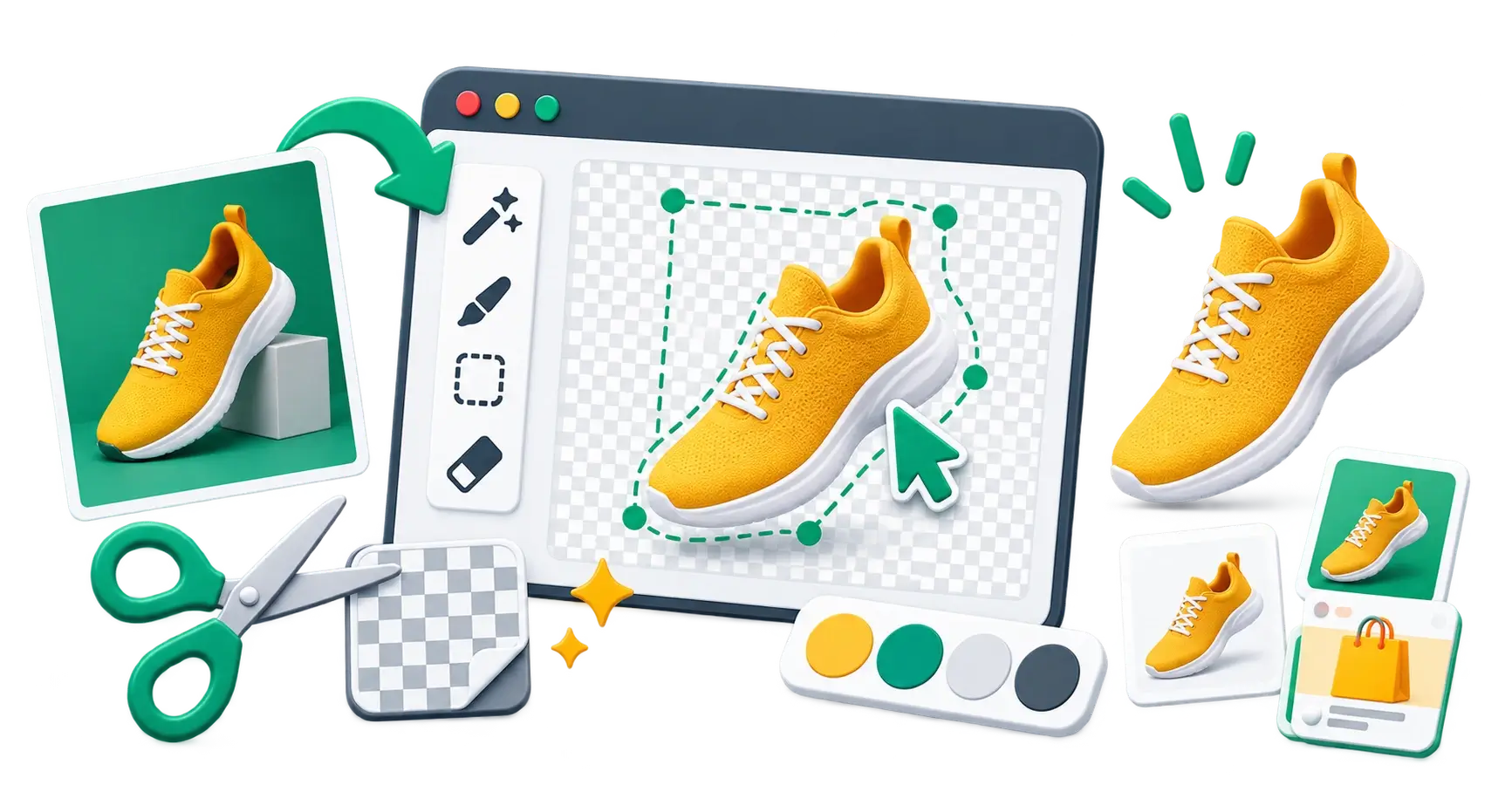
- Wait for processing: The local AI will analyse the image and generate a "mask" (the cut-out).
- Refine (if necessary): While the AI handles 95% of cases perfectly, complex edges (like frizzy hair or transparent glass) might need slight adjustments.
- Download: Save the resulting image. It will download as a PNG file, which supports the transparent background. (If you save it as a JPG, the background will default to white).
Tips for getting the best cut-out results
If you are shooting photos specifically with the intent to remove the background later, follow these guidelines:
- Contrast is key: Don't photograph a person wearing a white shirt against a white wall. The AI needs contrast to detect the edge. Shoot against a solid colour that contrasts with the subject.
- Avoid harsh shadows: Diffused, even lighting is best. If a harsh shadow falls across the subject and the background, it can confuse the edge detection.
- Keep it in focus: Ensure the subject is sharp. Blurry edges are difficult to isolate cleanly.
Related Design Tools
Once you have isolated your subject, you may need to prepare the final asset for publication:
- Image Cropper: Frame the cut-out perfectly for specific social media aspect ratios.
- Collage Maker: Combine multiple cut-out products into a single promotional graphic.
- Image Compressor: PNG files with transparency can be large. Compress them to keep page load speeds fast.
Building web UI elements or hero sections with isolated product cutouts? Explore our complete Frontend Web Asset Pipeline Guide to see how transparent PNGs are masked, sized, and converted to modern WebP assets.
Running an e-commerce store or multi-channel ad campaign? See how background removal powers our complete E-Commerce Visual Asset Pipeline Guide alongside bundle collages, multi-platform cropping, and store speed optimization.
Share this article
Help other marketers, developers, and creators discover these insights.