How to Generate Custom SVG Shapes for Web Design: Blobs, Waves and More
Why do SVG shapes matter in modern web design?
Open any well-designed landing page built in 2024–2026, and you will likely find organic blob shapes in the hero section, wavy dividers between content blocks, or abstract geometric patterns as background accents. These are almost always SVG (Scalable Vector Graphics) elements.
SVG has become the standard format for decorative web shapes because of three technical advantages:
- Resolution independence. SVG shapes are defined by mathematical coordinates, not pixels. They render perfectly at any screen size, from a mobile viewport to a 4K display, without any quality loss.
- Tiny file sizes. A complex SVG blob can be as small as 500 bytes, far smaller than the equivalent PNG or WebP raster image. This directly improves page load time and Core Web Vitals performance.
- CSS and JavaScript interoperability. SVG elements live in the DOM like HTML elements. You can style them with CSS, animate them with CSS transitions or keyframes, and manipulate them with JavaScript.
The challenge is that creating these shapes manually requires either advanced vector editing software (Adobe Illustrator, Figma, Inkscape) or writing SVG path syntax by hand, which is notoriously unintuitive. A path definition like M 233.5,300 C 213.9,299.7 196.7,284.1 190.2,265.5... is difficult to author, predict, or modify directly.
That is the problem SVG shape generators solve.
What does the SVG Shape Generator do?
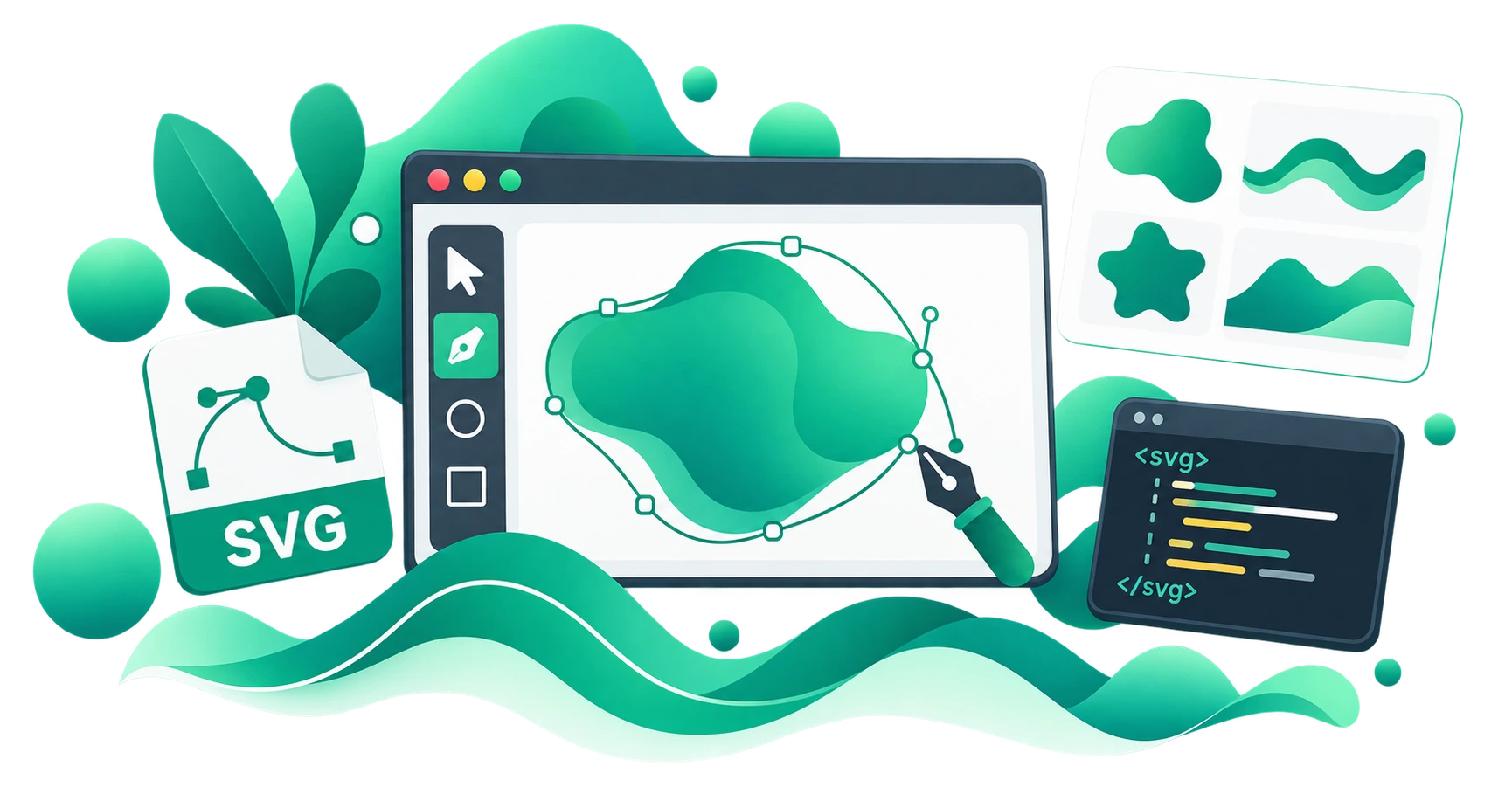
The CampaignMorph SVG Shape Generator creates mathematically generated vector shapes directly in your browser. You adjust visual parameters with sliders, and the tool produces the raw SVG code, ready to paste into your project.
Shape types
- Blobs: organic, rounded shapes with controllable randomness and complexity, commonly used as hero backgrounds, card accents, and image frames
- Waves: smooth undulating curves used as section dividers, footer decorations, and background patterns
Customisation controls
- Complexity: controls the number of control points in the shape, producing simpler or more intricate outlines
- Randomness: controls how far control points deviate from a regular pattern, producing shapes that range from geometric to organic
- Size: sets the viewBox dimensions of the output SVG
- Rotation: rotates the entire shape
- Scale: scales the shape within its viewBox
- Seed — each seed produces a unique shape. Click "Randomise" to generate a completely different variation
Colour and style
- Solid colour or gradient fill — choose a single colour or a two-colour gradient
- Stroke — add an outline with adjustable colour and width
- Transparent background — SVG shapes are transparent by default, making them easy to layer
Animation
Enable SMIL animation to make the shape morph continuously between variations. The generator produces the <animate> element with proper path interpolation, creating a subtle, looping morphing effect.
Export options
- Copy raw SVG — paste directly into your HTML
- Copy as Data URI — embed as a CSS
background-image: url(data:image/svg+xml,...)value without a separate file request - Download SVG file — save as a
.svgfile for use in design tools - Download PNG — export as a raster image at the specified size
How SVG shapes work technically
The <path> element
Most SVG shapes generated by tools like this use the <path> element with cubic Bézier curves. A Bézier curve is defined by a start point, an end point, and two control points that determine the curvature. By chaining multiple Bézier curves end-to-end, the generator creates smooth, organic outlines.
The SVG path command for a cubic Bézier is C, followed by the coordinates of the two control points and the endpoint:
M startX,startY C cp1x,cp1y cp2x,cp2y endX,endY
When the generator changes the randomness parameter, it moves the control points further from their default positions, creating more irregular shapes. When it changes complexity, it adds or removes control points.
The viewBox attribute
The viewBox attribute on the <svg> element defines the coordinate system. A viewBox="0 0 500 500" means the shape is drawn in a 500×500 unit space. Because SVG scales to its container, a shape defined in a 500×500 viewBox will look identical whether the container is 100px or 2000px wide.
Why Data URIs matter
A Data URI encodes the entire SVG as a string that can be placed directly in CSS:
.hero-background {
  background-image: url("data:image/svg+xml,%3Csvg...");
}
This eliminates one HTTP request, which can improve performance on pages with multiple decorative shapes. The SVG Shape Generator generates this format automatically.
Common use cases
Hero section backgrounds
Place a large blob behind the hero heading and image. Use a soft gradient fill with low opacity so the shape adds visual interest without competing with the content. This is the single most common use of generated SVG shapes on modern landing pages.
Section dividers
Replace flat horizontal lines between content sections with wavy SVG dividers. A wave shape, rotated and positioned at the bottom of a section, creates a smooth visual transition between two differently-coloured content blocks.
Image masks and frames
Use a blob shape as a CSS clip-path or mask-image to crop a rectangular photograph into an organic shape. This technique is popular for team member photos, testimonials, and product images. For more advanced animated masking, see the CSS Shape Animator.
Card and UI accents
Place a small blob behind a card, a pricing box, or a call-to-action button as a subtle background accent. This adds depth and visual hierarchy without adding text or imagery.
Social media graphics
Export shapes as PNG and layer them in your social media graphics. The transparent background makes them easy to composite with photographs and text in any design tool.
Combining SVG shapes with other CSS tools
SVG shapes work well alongside other CSS design techniques:
- Use the CSS Gradient Generator to create gradient backgrounds and apply them to SVG fills
- Use the CSS Shape Generator for shapes built entirely with CSS properties like
clip-pathandmask, rather than SVG - Use the CSS Shape Animator to add morphing animations to your shapes
- Use the Box Shadow Generator to add depth to elements that sit on top of SVG shape backgrounds
- Follow our comprehensive Frontend Web Asset Pipeline Guide to see how vector shapes integrate with aspect ratio management, image masking, and next-gen WebP compression.
Tips for using SVG shapes effectively
- Keep shapes subtle. Decorative shapes should enhance, not distract. Use low-opacity fills and position shapes behind content layers.
- Limit the number of shapes per page. Two to three decorative shapes per section is usually sufficient. Too many shapes create visual clutter.
- Use consistent colour palettes. Match shape colours to your brand palette. Randomly coloured shapes look amateur.
- Test on mobile. SVG shapes scale automatically, but check that they do not overflow on small viewports or create unintended horizontal scrolling.
- Prefer inline SVG or Data URIs over external files for small decorative shapes. This reduces HTTP requests without meaningful size impact.
Frequently asked questions
What is an SVG shape generator? An SVG shape generator is a tool that creates vector shapes (blobs, waves, polygons) using mathematical algorithms and outputs the raw SVG code. You can paste this code directly into your web project.
Are SVG shapes better than PNG shapes? For web use, yes. SVG shapes are resolution-independent, much smaller in file size, animatable with CSS, and manipulable with JavaScript. PNGs are pixel-based and cannot scale without quality loss.
Can I animate the generated SVG shapes? Yes. The SVG Shape Generator includes a built-in SMIL animation option that makes shapes morph continuously. You can also animate SVGs with CSS transitions or JavaScript libraries.
Is the SVG Shape Generator free? Yes. The tool is completely free, runs in your browser, requires no sign-up, and has no usage limits or watermarks.
Can I use the generated shapes commercially? Yes. The shapes are generated algorithmically from random seeds. You can use them freely in any personal or commercial project.
Try the free SVG Shape Generator
The CampaignMorph SVG Shape Generator creates unique, randomised vector blobs and waves instantly. Adjust complexity, randomness, colour, and animation, then copy the raw SVG or download as a file. No design skills required.
For related design tools, explore the CSS Shape Generator, CSS Shape Animator, CSS Gradient Generator, and CSS Pattern Generator.
Sources
- W3C SVG specification — defining
<path>,viewBox, and<animate>elements - MDN Web Docs — SVG path commands, Bézier curves, and Data URI encoding reference
- Google Search Central — guidance on web performance and Core Web Vitals, including the impact of image format choice on page speed
Share this article
Help other marketers, developers, and creators discover these insights.